Switch to Tickbase

Bring your tasks with you

Tickbase reads what the big to-do apps export, so you don't have to start again from a blank list. Here's how to get your tasks out of each one and into Tickbase. Importing is free, on every plan.

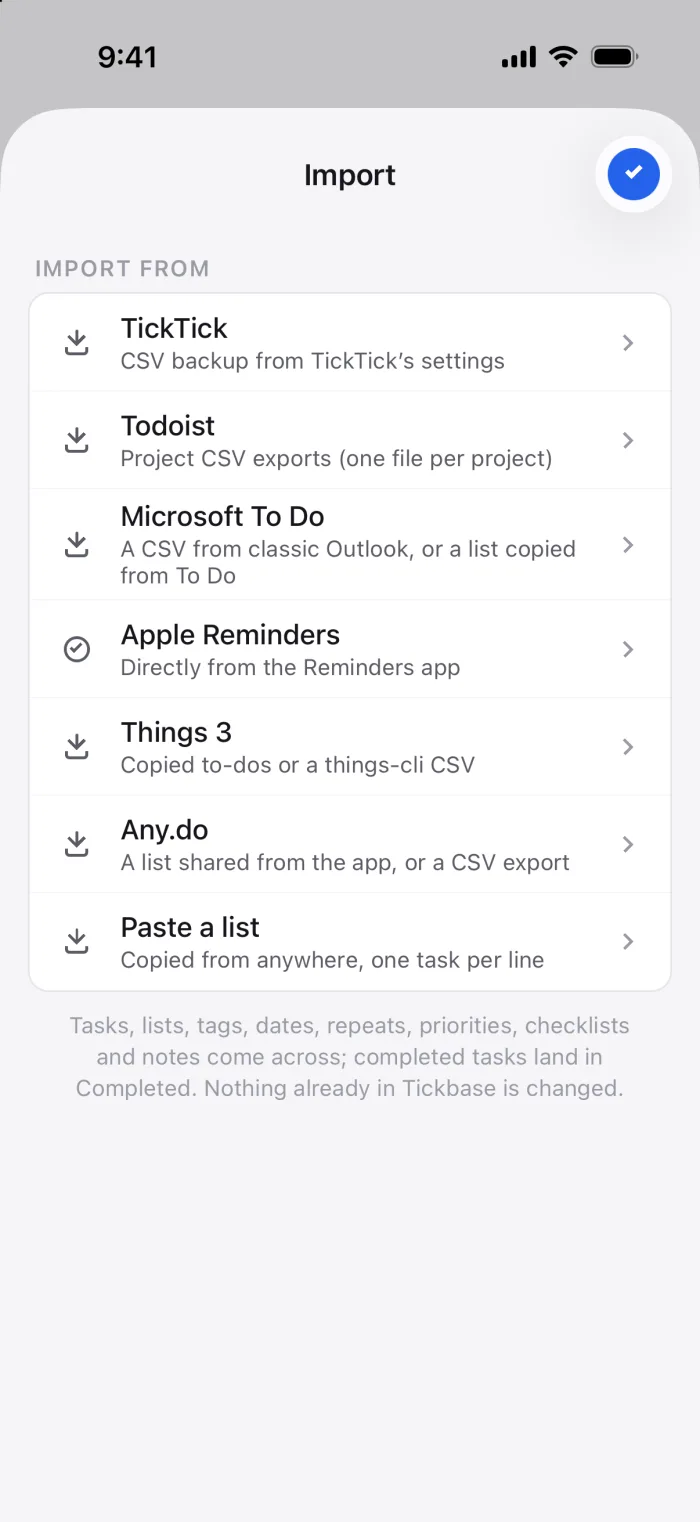
Import on iPhone: TickTick, Todoist, Microsoft To Do, Apple Reminders, Things 3, Any.do and Paste a list.
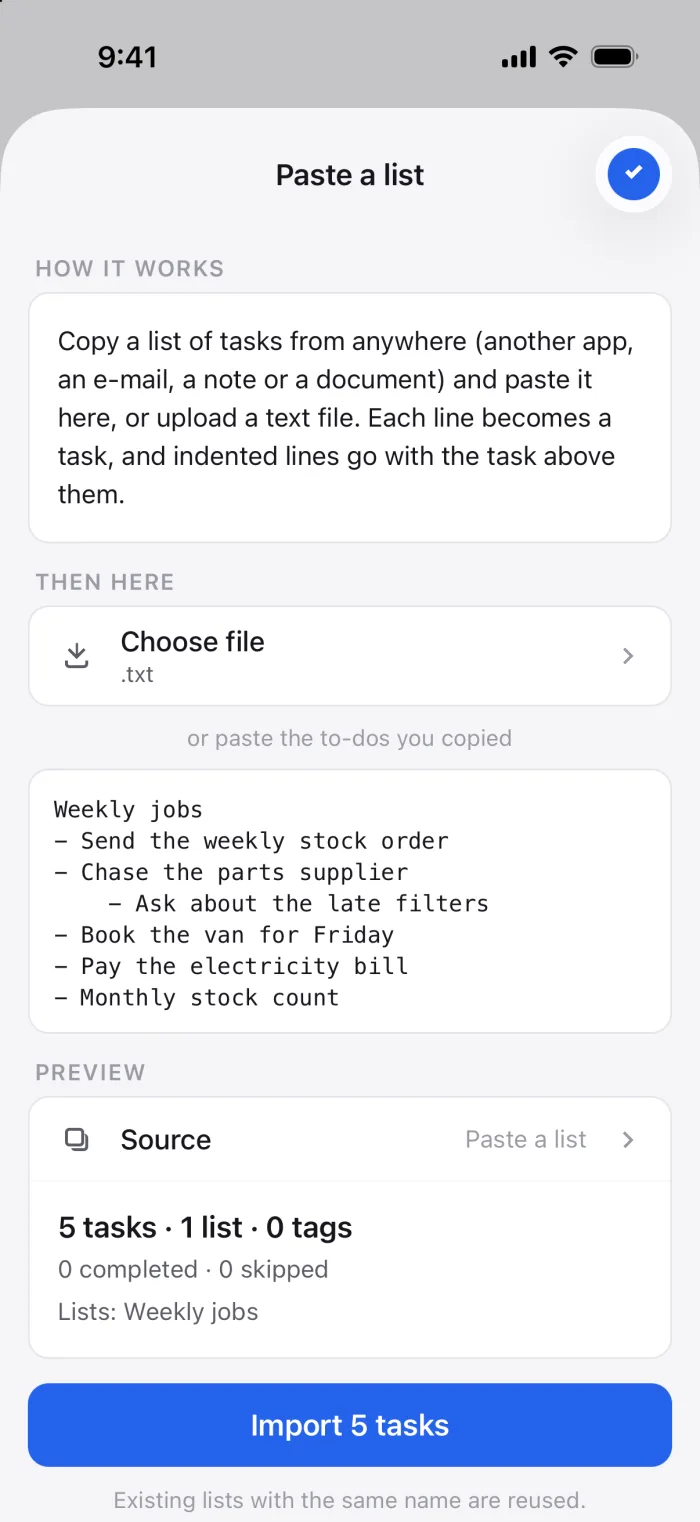
Paste a list on iPhone: a list copied from To Do, ready to check and import.

Which app are you using now?

Coming from Microsoft To Do

Microsoft is retiring To Do: its apps stop working on 30 June 2027, and personal accounts aren't being moved anywhere. If you're looking for a new home for your lists, your tasks can come with you.

The easy way: sign in with Microsoft

Every list, with its due dates, reminders, repeats, steps, notes and what's done.

  1. Open Tickbase on your phone, your computer or the web at app.tickbase.app, and sign in first, especially if you have more than 5 lists: a new account's free Premium trial brings every list across as its own list, and puts your lists on every device. When the trial ends, nothing is lost: every list and task stays. On the free plan you keep 5 lists to edit, and Premium keeps them all.
  2. Open Import (Settings → Data on the web and computer, Settings → Integrations on a phone), choose Microsoft To Do and tap Sign in with Microsoft.
  3. Sign in with the Microsoft account you use for To Do, and allow Tickbase to read your tasks.
  4. Check what's coming across, then click Import. Your lists sync to Tickbase on every device you use.

Tickbase only reads your tasks, once. It never sees your Microsoft password, and it can't change anything in To Do.

Rather not sign in to Microsoft? There are two other ways to bring your tasks across.

From Outlook on Windows

Brings dates, notes and what's done.

  1. Open the classic Outlook for Windows, signed in to the same Microsoft account. If there's a New Outlook switch at the top right, turn it off.
  2. Go to File → Open & Export → Import/Export → Export to a file → Comma Separated Values and pick the Tasks folder.
  3. In Tickbase, open Import, choose Microsoft To Do and upload the file.

Titles, notes, due dates, reminders, importance, categories and finished tasks come across. The file doesn't say which list each task was in, so they arrive together, ready to sort.

Copy and paste a list

Works anywhere, on a Mac or with the new Outlook too.

  1. In To Do, open a list, click ⋯ and choose Email list or Print list, then copy the tasks.
  2. In Tickbase, open Import, choose Paste a list and paste them in.

Each line becomes a task, and indented lines go with the task above them. Dates and repeats don't come across this way, so set the repeat on your regular jobs once they're in: typing “every Monday” in quick add does it.

The import dialog on Microsoft To Do: the Sign in with Microsoft button, then the steps by hand for classic Outlook, the new Outlook or a Mac.
Paste a list: a list copied from a To Do e-mail, and the five tasks it becomes, before anything is added.

Microsoft To Do in Import, with Sign in with Microsoft at the top and the steps by hand below (left), and a list pasted in from To Do's e-mail (right). You see what's coming before anything is added.

The pasted list in Tickbase: Weekly jobs, with its five tasks and the subtask under Chase the parts supplier.

And there it is in Tickbase, subtask and all. Set the repeat on your weekly jobs and you're done.

Leave everything in To Do until you're happy with how it looks in Tickbase. Importing never changes anything already in Tickbase, so you can try it as many times as you like.

Coming from TickTick

On the web, open Settings → Backup & Restore and click Generate Backup. Upload the CSV it saves.

Tasks, lists, tags, dates, reminders, repeats, priorities and checklists come across. Countdowns and habits aren't in TickTick's backup, so add those by hand.

Coming from Todoist

Open a project's menu and choose Export as CSV (one file per project), or download a full backup from Settings → Backups and upload the zip.

Todoist leaves finished tasks out of its exports, so only what's still to do comes across.

Coming from Apple Reminders

On iPhone or iPad there's no file at all: Tickbase reads straight from the Reminders app, and each list becomes a Tickbase list.

Due dates, alerts, repeats, notes and finished reminders come across, and a reminder with a date but no alert still reminds you at its time.

Apple doesn't tell other apps which reminders are subtasks, so they arrive as tasks of their own. Select them and choose Subtasks to put them back.

Coming from Things

Things has no export, but copying works: select your to-dos in Things, copy, and paste them into Import. A CSV made with things-cli works too.

Coming from Any.do

In the Any.do phone app, open a list, tap ⋯ → Export, copy it and paste it into Import. For finished tasks, Settings → Archived Tasks on the web e-mails you a CSV to upload.

Coming from somewhere else

Choose Paste a list and paste any list of tasks, one per line: from notes, an e-mail or a spreadsheet column. Indented lines go with the task above them.

Where to find Import

On the web and the desktop app

Settings → Data → Import. Choose the app you're coming from, then upload the file or paste the text.

On iPhone, iPad and Android

Settings → Integrations & Import → Import from another app. The phone walks you through each app's steps.

Settings → Data on the web: Import from another app, Export your tasks, and Restore from a Tickbase backup.

Settings → Data on the web and the desktop app.

Before anything is added you see what's coming, and you can leave out any list, or the tasks you'd already finished.

Reminders come across from every app that exports them. On the free plan each task keeps one, the latest; with Premium every reminder comes across.

You see everything before it's added. Lists with the same name are reused, finished tasks go to Completed, and nothing already in Tickbase is changed.

Free to come in, free to leave

Importing is free on every plan; you don't need Premium for it. Your tasks are yours, too: export everything as JSON or a spreadsheet-friendly CSV from the same place, whenever you like. I'd rather you stayed because you like it, not because it's hard to get out.

TickTick, Todoist, Microsoft To Do, Apple Reminders, Things and Any.do are trademarks of their owners. Tickbase isn't connected with any of them.

Ready when you are

Open the web app and start typing. No account, no card, no onboarding tour.